Quick Answer: If you forgot your Quicken password in 2026, go to the Quicken sign-in page, click “Forgot Password?”, enter your registered email address, check your inbox for the reset link, and follow the steps to create a new password. Full step-by-step instructions are below.
What Happens When You Forget Your Quicken Password?
Quicken uses two separate types of passwords, and knowing which one you forgot is the first step to recovering your account quickly in 2026.
Type 1 — Quicken ID Password (Cloud Login)
This is your Quicken account login used to access Quicken.com, sync your financial data across devices, and activate your subscription. If you forget this password, you cannot sign in to the Quicken desktop app, web app, or mobile app.
Type 2 — Quicken Data File Password (Local File)
This is an optional password you can manually set to protect a specific Quicken data file (.QDF) stored locally on your computer. Forgetting this means you cannot open your personal financial records on your device.
Both situations are fully recoverable. Let’s walk through each one clearly.
Read: How to Fix Quicken Error CC-800?
Step-by-Step: How to Reset Your Quicken ID Password in 2026
Follow these exact steps to reset your Quicken login password:
Step 1 — Go to the Quicken Sign-In Page
Open your preferred web browser and go to quicken.com. Click “Sign In” in the top-right corner of the homepage.
Step 2 — Click “Forgot Password?”
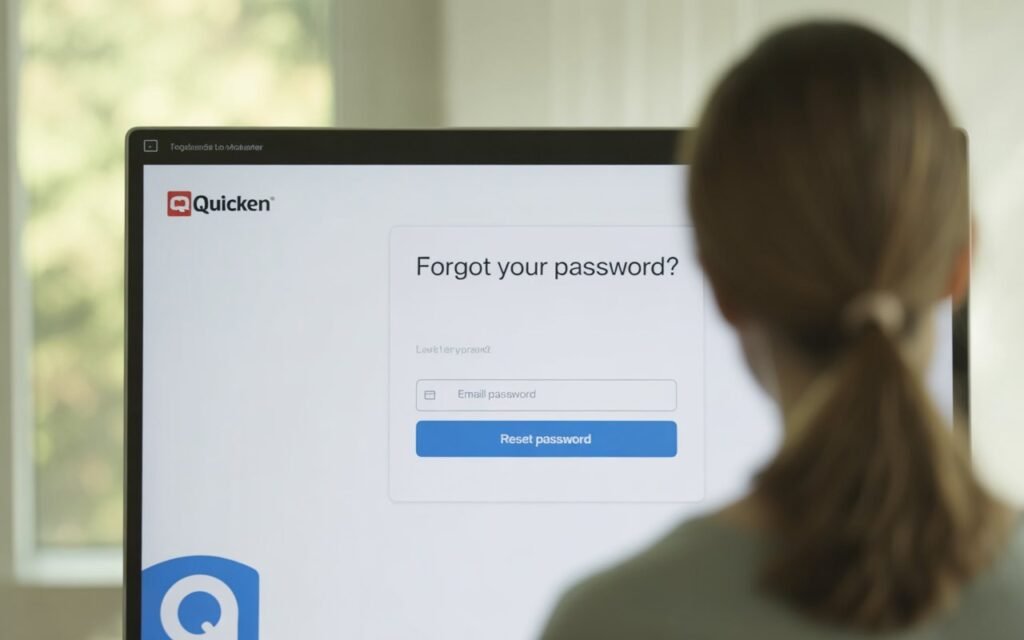
On the login screen, type your registered email address into the email field, then click “Forgot Password?” — this link appears just below the password entry box.
Step 3 — Enter Your Registered Email Address
Type in the exact email address linked to your Quicken ID. This must be the email you used when you originally created your Quicken account. Double-check for typos before submitting.
Step 4 — Check Your Email Inbox
Quicken will send a password reset email to your inbox within 2–5 minutes. Check your primary inbox first. If you do not see it within 5 minutes, check your Spam, Junk, Clutter, or Promotions folder before requesting another email.
Step 5 — Click the Reset Link in the Email
Open the Quicken reset email and click the “Reset Password” button or link inside it. This link is valid for 60 minutes only — act quickly before it expires and you need to request a new one.
Step 6 — Create a Strong New Quicken Password
You will be taken to a secure Quicken page to create your new password. In 2026, Quicken requires passwords that are at least 8 characters long and include a mix of uppercase letters, lowercase letters, numbers, and at least one special character such as !, @, or #.
Step 7 — Sign Back Into Quicken
Return to the Quicken desktop app, web app, or mobile app. Enter your email address and your new password, then click Sign In. Your full account, subscription, and financial data will be completely restored.
2026 Pro Tip: After resetting, immediately save your new Quicken password in a trusted password manager such as Bitwarden, 1Password, or Dashlane. Bitwarden is completely free and highly secure — a great option if you do not already use one.
How to Reset Your Quicken Data File Password {#data-file-password}
If you set a local password on your Quicken data file — the .QDF file stored on your Windows PC or Mac — here is how to recover it:
Option 1 — Use the Built-In File Password Recovery (Quicken Classic)
- Open the Quicken application on your computer
- Go to File > Open Quicken File
- Select your data file from the list and click Open
- When the password prompt appears, look for “I Forgot My Password” and click it
- Answer your previously set security questions or follow the identity verification steps shown on screen
Option 2 — Contact Quicken Support for Verified Recovery
For all versions of Quicken released from 2020 onward — including Quicken Classic Deluxe, Premier, Business & Personal, and Simplifi — local file password recovery requires direct assistance from Quicken’s official support team. This protection exists to keep your sensitive financial data safe from unauthorized access.
How to Reach Quicken Support in 2026:
- Visit quicken.com/support for the most current contact options
- Use the Live Chat feature for the fastest response — usually under 10 minutes during business hours
- Call the phone support line listed inside your Quicken account dashboard
- Before contacting support, have your Quicken ID email, subscription order number, and proof of purchase ready to speed up the verification process
⚠️ Security Notice: There is no bypass method or third-party workaround that can safely unlock a Quicken data file password. Any tool claiming to do so is unsafe and may compromise your financial data. Always use official Quicken support channels only.
Quicken Password Reset Not Working? Try These Fixes {#not-working}
If the standard reset process is not working for you in 2026, go through these troubleshooting steps one by one until the issue is resolved:
Problem 1 — Reset Email Is Not Arriving
- Wait a full 10 minutes and refresh your inbox before trying again
- Search your entire inbox for emails from “quicken.com” or “intuit.com”
- Check your Spam, Junk, Clutter, and Promotions folders thoroughly
- Add noreply@quicken.com to your email contacts or safe sender list
- Make sure the email address you entered has no typos — even one wrong character will cause the email to go to the wrong address
- Try requesting the reset email a second time from the Quicken login page
Problem 2 — Reset Link Is Expired or Not Working
- Password reset links from Quicken expire after 60 minutes
- Do not click the link more than once, as some email security tools auto-click links and invalidate them
- Go back to the Quicken sign-in page, request a brand new reset email, and use that fresh link immediately
- Open the link in a private or incognito browser window to avoid session conflicts
Problem 3 — New Password Is Being Rejected
- Quicken enforces a minimum of 8 characters in 2026
- Your new password must include uppercase letters, lowercase letters, at least one number, and at least one special character
- You cannot reuse any of your recent previous passwords
- Avoid using your name, email address, or “Quicken” in the password
- Try a completely unique password you have never used for any account
Problem 4 — Account Shows “Email Not Found” or “No Account Exists”
- You may have registered with a different email address than you are currently trying
- Try all other email addresses you have ever used — work, personal, old accounts
- Check whether you signed up using Sign in with Google or Sign in with Apple when you first created the account
- If none of your emails work, contact Quicken Support with your original purchase confirmation or receipt
Problem 5 — Quicken Desktop App Not Accepting New Password After Reset
- Fully close and restart the Quicken application — do not just minimize it
- On Windows: go to Edit > Preferences > Quicken ID & Cloud Accounts > Sign In As Different User
- On Mac: go to Quicken > Preferences > Connected Services > Sign Out
- Re-enter your updated email and new password fresh
- If using the mobile app, log out completely, uninstall, reinstall, and log back in with your new credentials
How to Recover a Quicken Account With No Access to Your Email
If you no longer have access to the email address that was linked to your Quicken account, you will need to go through Quicken’s manual identity verification process with their customer support team.
Prepare the following information before reaching out to support — having everything ready will speed up the process significantly:
- Your full legal name as it appears on the Quicken account
- The original email address used to create the account (even if you no longer have access to it)
- A valid proof of purchase such as an order confirmation email, receipt, or subscription invoice
- The last four digits of the payment method originally used to purchase Quicken
- Your Quicken product version, edition name, and current subscription tier
- A new active email address where Quicken can send your recovered account details
Quicken support agents can verify your identity using your purchase history and billing records, then transfer your account to your new email address safely. This process typically takes 24 to 48 business hours to complete.
Best Ways to Contact Quicken Support in 2026:
- Live Chat — Fastest option, available weekdays during standard business hours at quicken.com/support
- Phone Support — Available for active paid subscribers; number listed in your account dashboard
- Support Ticket — Available for non-urgent issues with a typical response time of 1–2 business days
How to Prevent Getting Locked Out of Quicken Again {#prevention}
The best fix is the one you never need. Use these strategies in 2026 to make sure you never go through a Quicken password lockout again:
1. Use a Password Manager Starting Today
Password managers store your login credentials securely and fill them in automatically every time you need them. Bitwarden is free and open-source. 1Password and Dashlane are excellent paid options. Set this up today — it takes less than 5 minutes and will save you hours of frustration in the future.
2. Enable Two-Factor Authentication on Your Quicken Account
Log into your account at quicken.com, go to account security settings, and turn on two-factor authentication (2FA). When 2FA is enabled, even if someone gets your password they cannot access your account — and your own recovery becomes much easier because your identity is already verified through a second method.
3. Keep Your Email Address Current
Your recovery email is your lifeline. If you switch email providers or stop using an old address, update your Quicken account immediately. An outdated recovery email is one of the most common reasons people get permanently locked out.
4. Write Your Password Down and Store It Safely
Keep a handwritten copy of your Quicken login credentials in a secure physical location — a locked drawer, a home safe, or another private spot only you can access. This simple backup has saved countless people from lengthy account recovery processes.
5. Add a Backup Phone Number to Your Account
Add a mobile phone number to your Quicken account settings as a secondary recovery option. Some account recovery flows in 2026 allow SMS verification as an alternative to email, which gives you an additional way back into your account if your email is unavailable.
6. Check Your Account Credentials Once Every 6 Months
Set a calendar reminder every six months to log in and verify your Quicken credentials are working correctly. Catching a login issue during a routine check is far less stressful than discovering it during tax season or a financial emergency.
Frequently Asked Questions (FAQ)
Q: Can I recover my Quicken data if I forget both my Quicken ID and file password at the same time?
A: Yes, but you will need to work with Quicken Support directly. Provide your proof of purchase and billing details to verify your identity. Their team can restore access to both your account and your local data file through official, secure channels.
Q: Will forgetting my Quicken password delete or corrupt my financial data?
A: No. Being locked out of your account does not affect your data in any way. Your Quicken data file stored on your computer remains completely intact. You simply need to regain login access to view it again.
Q: How long is the Quicken password reset link valid in 2026?
A: The reset link is valid for 60 minutes from the time the email is sent. If it expires before you use it, return to the Quicken sign-in page and request a new reset email right away.
Q: I reset my Quicken password but the desktop app is still showing my old session. What do I do?
A: Fully close the Quicken application, wait 30 seconds, and reopen it. Enter your new credentials. If it still does not work, go to Edit > Preferences > Quicken ID & Cloud Accounts and select “Sign In As Different User” to clear the old session completely.
Q: Can I change my Quicken password from inside the app without going to the website?
A: Yes. While signed in, go to Edit > Preferences > Quicken ID & Cloud Accounts and select “Update Quicken ID Settings” to update your password directly from within the desktop application.
Q: Is it safe to reset my Quicken password from a public computer or shared device?
A: No, it is not recommended. Always reset your password from a private, trusted personal device. If you must use a shared computer in an emergency, immediately sign out of all browser sessions and clear the browser history and cache when finished.
Q: Quicken says it does not recognize my email address. What does that mean?
A: This means the email you entered is not linked to any Quicken account in their system. You may have registered under a different email address. Try every email address you have ever used. If none work, contact Quicken Support with your order confirmation number to locate your account manually.
Q: Does Quicken support biometric login in 2026 to avoid password issues altogether?
A: Yes. The Quicken mobile app on both iOS and Android supports Face ID and fingerprint (Touch ID) login on compatible devices. Enabling biometric login in your mobile app settings means you will almost never need to enter your password manually on your phone again.
Q: Can I use the same password for Quicken that I use for other accounts?
A: It is strongly advised not to reuse passwords across accounts. If one account is ever compromised, all accounts sharing that password become vulnerable. Use a unique, strong password for Quicken and store it in a password manager.
Still Need Help?
If you have followed every step in this guide and you still cannot access your Quicken account, the safest and fastest path forward is to contact Quicken Customer Support directly through their official website at quicken.com/support.
Quicken’s support team handles account recovery situations every day and can restore your access safely and securely — typically within 24 to 48 business hours — without putting your financial data at risk.
This guide was written to help Quicken users in 2026 recover their accounts quickly, safely, and without confusion. All steps reflect the current Quicken platform as of early 2026. If Quicken updates their sign-in or password recovery process after this publication date, some steps may vary slightly from what is described here.