
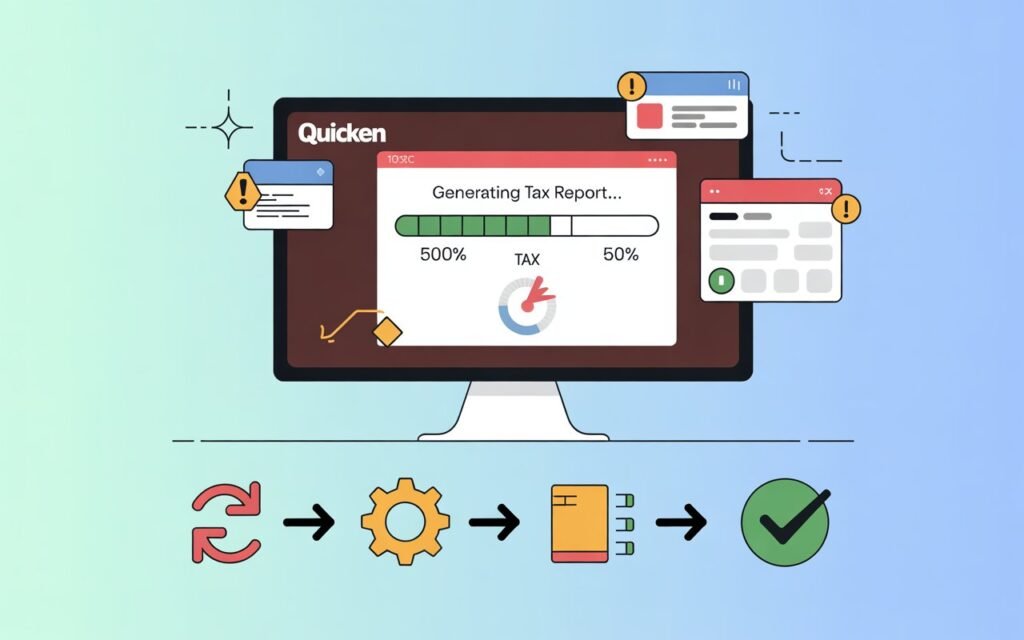
It’s tax season. You’ve been diligently tracking every transaction, every deduction, and every investment move all year long inside Quicken. You sit down, take a deep breath, and click “Generate Tax Report.” And then… nothing. The spinning wheel. The frozen screen. The dreaded “Not Responding” message sitting right at the top of your window like a slap in the face.
If you’ve been here, you know exactly how stressful this is. Tax deadlines don’t care that your software froze. The IRS certainly doesn’t care. And in that moment, it can feel like everything you’ve carefully organized inside Quicken is suddenly completely out of reach.
Here’s the good news — this problem is actually very fixable. In most cases, Quicken freezes during tax report generation for a handful of well-known reasons, and once you know what they are, you can walk through the fixes one by one until your software is running smoothly again.
This guide is written to be as clear and practical as possible. No unnecessary tech speak. No vague “try restarting your computer” advice that doesn’t actually help. Just real, step-by-step solutions that Quicken users have actually used to get their software working again — especially during tax season when every minute counts.
Let’s get into it.
Read: Quicken Not Downloading Credit Card Transactions
Why Does Quicken Freezing During Tax Report Generation?
Before we jump into fixes, it’s worth understanding why this happens. Quicken freezes during tax report generation because generating a tax report is one of the most resource-intensive things the software does. It’s not just pulling up a simple screen — it’s scanning potentially years worth of transactions, categorizing them, calculating totals, cross-referencing tax schedules, and compiling everything into a formatted report.
When something interrupts or overloads that process, the software gets stuck.
Here are the most common culprits:
- Large or bloated Quicken data file that has too much history for the software to process quickly
- Corrupted data file where one or more transactions are damaged and causing the report engine to choke
- Outdated version of Quicken that has known bugs in the tax reporting module
- Low system memory (RAM) that can’t handle the report generation process
- Background programs eating up your computer’s resources while Quicken is trying to work
- Corrupted Quicken program files from a bad update or interrupted installation
- Windows or macOS conflicts with the current version of Quicken
- Too wide a date range selected for the tax report, creating an enormous data processing demand
- Security software interfering with Quicken’s ability to generate or save report files
- Damaged tax schedule mappings inside your Quicken account categories
Now let’s go through the fixes — starting with the easiest and most common solutions first.
Fix 1: Force Close Quicken and Restart Fresh
This sounds almost too simple, but it’s worth doing properly before anything else. When Quicken freezes, most people just mash the X button to close it. But a proper force close and clean restart can sometimes clear a temporary memory error that was causing the freeze.
Here’s how to do it properly:
On Windows:
- Press Ctrl + Alt + Delete on your keyboard
- Click Task Manager
- Find Quicken in the list of running programs
- Click on it, then click End Task
- Wait a full 60 seconds before reopening Quicken — this gives Windows time to fully release the memory Quicken was using
On Mac:
- Press Command + Option + Escape
- Find Quicken in the Force Quit window
- Click Force Quit
- Wait 60 seconds, then reopen
After reopening, try generating the tax report again. If it works — great. If not, move on to the next fix.
Fix 2: Update Quicken to the Latest Version
This is one of the most overlooked fixes, and it solves the problem more often than you’d expect. Quicken releases updates throughout the year, and many of those updates specifically address performance bugs and freezing issues in report generation.
If you’re running an outdated version — especially if you haven’t updated since last tax season — there’s a very real chance that Anthropic has already patched the exact bug that’s causing your freeze.
How to update Quicken on Windows:
- Open Quicken
- Click Help in the top menu bar
- Select Check for Updates
- If an update is available, click Install and let it complete fully
- Restart Quicken after the update finishes
How to update Quicken on Mac:
- Open Quicken
- Click Quicken in the top menu bar
- Select Check for Updates
- Install any available updates and restart
After updating, try generating your tax report again. Many users find this solves the freezing problem entirely.
Fix 3: Reduce the Date Range of Your Tax Report
One common reason Quicken freezes during tax report generation is that the date range selected is simply too large. If you’re asking Quicken to pull tax data across multiple years — or even across a full decade of transactions — the software may not have enough processing power to handle it all at once.
Here’s what to do:
- Open Quicken and go to Reports > Tax > Tax Summary (or whichever tax report you need)
- Before generating, look at the Date Range setting at the top of the report window
- If it’s set to “All Dates” or multiple years, narrow it down to just the current tax year — for example, January 1, 2025 to December 31, 2025
- Try generating the report with that smaller date range
This dramatically reduces the amount of data Quicken needs to process at once and often eliminates the freezing issue completely.
If you need multiple years of tax data, generate them one year at a time and export each one separately. It takes a little more time, but it works reliably.
Fix 4: Validate and Repair Your Quicken Data File
If Quicken is freezing specifically during tax report generation — and not during other tasks — there’s a good chance your data file has a corrupted or damaged transaction somewhere in it. When the tax report engine hits that corrupted data, it gets stuck trying to process something it can’t understand, and the whole program freezes.
Quicken has a built-in validation and repair tool designed exactly for this situation.
How to validate and repair your Quicken data file:
- Open Quicken
- Before you do anything, go to File > Backup and create a fresh backup of your data file. This is critical — always back up before running a repair.
- Go to File > File Operations > Validate and Repair
- In the window that appears, check the box that says Validate File
- Also check Rebuild investing lots if you have investment accounts
- Click OK and let the process run — this can take anywhere from a few minutes to 20+ minutes depending on how large your file is
- When it finishes, Quicken will show you a log of anything it found and fixed
- Close and reopen Quicken, then try generating your tax report again
This fix resolves the freezing problem for a large percentage of users who experience it specifically with tax reports. Corrupted data is far more common than most people realize, especially after years of importing transactions from multiple bank accounts.
Fix 5: Clear Up System Memory Before Running the Report
Generating a tax report in Quicken can temporarily use a significant amount of your computer’s RAM. If your system is already running low on memory because of other open programs, Quicken simply runs out of room to work and freezes.
Here’s how to free up memory before generating your tax report:
- Close all other programs you don’t need right now — browsers, email apps, music players, document editors, everything
- On Windows, press Ctrl + Alt + Delete > Task Manager > Processes and look for anything using a lot of memory that you can safely close
- On Mac, open Activity Monitor (search for it in Spotlight) and look at the Memory tab for resource-heavy apps you can quit
- Once you’ve cleared as much memory as possible, open Quicken and immediately try generating the tax report before other programs start loading again
If your computer consistently struggles with Quicken’s memory demands, it may be time to consider upgrading your RAM — especially if you’re running 4GB or less on a machine running Windows 11.
Fix 6: Disable Security Software Temporarily
Antivirus programs, firewall software, and real-time security scanners sometimes interfere with Quicken’s report generation process. These programs watch every file operation your computer performs, and when Quicken tries to generate and write a tax report file, the security software may be scanning it in real time — creating a bottleneck that causes Quicken to freeze.
What to do:
- Temporarily disable your antivirus or security software (just for a few minutes while you test this)
- Open Quicken and try generating your tax report
- If it works fine with the security software disabled, the conflict is confirmed
- Re-enable your security software
- Go into your antivirus settings and add Quicken as an exception or “trusted application” — this tells the security software to stop scanning Quicken’s files in real time
Common antivirus programs that are known to conflict with Quicken include Norton, McAfee, Kaspersky, and some versions of Windows Defender’s real-time protection. Adding Quicken to the exclusions list in whichever security software you use will solve the conflict permanently.
Fix 7: Run Quicken as Administrator (Windows)
On Windows computers, Quicken sometimes freezes during report generation because it doesn’t have the necessary permissions to write files to certain folders on your system. Running Quicken as an administrator gives it the elevated permissions it needs to complete these operations without getting blocked.
How to run Quicken as Administrator:
- Close Quicken completely
- Find the Quicken shortcut on your desktop or in your Start Menu
- Right-click on it
- Select Run as Administrator
- Click Yes if Windows asks for confirmation
- Open Quicken and try generating your tax report
If this solves the problem, you can set Quicken to always run as Administrator so you don’t have to do this manually every time:
- Right-click the Quicken shortcut
- Select Properties
- Click the Compatibility tab
- Check the box that says Run this program as an administrator
- Click Apply then OK
Fix 8: Repair the Quicken Program Installation
Sometimes the Quicken program files themselves get corrupted — not your data file, but the actual software installation. This can happen after a failed update, an interrupted installation, or a system crash while Quicken was running. When the program files are damaged, Quicken may work fine for basic tasks but freeze on more demanding operations like generating tax reports.
How to repair Quicken on Windows:
- Close Quicken completely
- Press the Windows key + R to open the Run dialog
- Type appwiz.cpl and press Enter — this opens Programs and Features
- Find Quicken in the list
- Click on it, then look for a Repair option at the top of the window
- If Repair is available, click it and let it run
- After the repair is complete, restart your computer and try Quicken again
If there’s no Repair option, you may need to uninstall and reinstall Quicken. Before uninstalling, make sure your data file is backed up in a safe location — your Quicken data file is separate from the program itself and will not be deleted when you uninstall the software.
How to reinstall Quicken:
- Uninstall Quicken from Programs and Features
- Download the latest installer from quicken.com/download
- Run the installer and complete the setup
- Open Quicken and point it to your existing data file
Fix 9: Check Your Tax Category Mappings
Here’s one that most guides don’t mention — and it’s surprisingly common. Quicken uses something called “tax schedule mappings” to link your spending and income categories to specific IRS tax schedule lines. If any of these mappings are damaged, broken, or pointing to the wrong tax line, the tax report engine can get confused and freeze while trying to compile the report.
How to check and fix your tax category mappings:
- Go to Edit > Categories (or Tools > Categories depending on your version)
- Look through your category list and click on any category that should have a tax link
- Check the Tax section for that category and make sure the correct tax schedule line is selected
- If you see any categories with unusual or blank tax schedule assignments that shouldn’t be blank, fix them
- After reviewing your categories, try generating the tax report again
This fix is particularly relevant if you recently imported data from another financial program, merged categories, or added a lot of new custom categories throughout the year.
Fix 10: Create a New Quicken Data File to Test
If you’ve tried everything above and Quicken is still freezing, this is the diagnostic test that tells you definitively whether the problem is with your data file or with the Quicken program itself.
Here’s what to do:
- Go to File > New Quicken File
- Create a simple test file with just one or two manual transactions
- Try generating a tax report from this new, empty test file
If the test file generates a report without freezing: The problem is with your original data file — it’s corrupted or too large for Quicken to handle efficiently. You’ll need to work on repairing or rebuilding that file.
If the test file also freezes: The problem is with the Quicken program installation itself, not your data. A full reinstall is your best next step.
This test saves you a lot of time because it points you in the right direction immediately.
Fix 11: Export Data and Use Quicken’s Tax Planner Instead
If tax season is bearing down on you and you absolutely cannot get the tax report to generate through the standard method, here’s a workaround that many users don’t know about:
- Go to Planning > Tax Planner in Quicken
- The Tax Planner is a separate module from the Tax Report and is often more stable on systems where the tax report generator has issues
- It pulls similar data from your accounts and presents it in a tax planning format that you can use as a reference for filing
Additionally, Quicken allows you to export your transaction data to TurboTax directly, which may bypass the tax report freezing issue entirely:
- Go to File > Export and look for the TurboTax export option
- Export your Quicken data to TurboTax format
- Open TurboTax and import the file — TurboTax will organize the data in the format you need for filing
This is not a fix for the underlying freezing problem, but it gets you through tax season while you work on resolving the issue properly.
Fix 12: Contact Quicken Support for a Data File Recovery
If your data file is severely corrupted and none of the above fixes have worked, Quicken’s support team has specialized tools that can sometimes recover and repair data files that users cannot fix on their own.
How to reach Quicken Support:
- Phone: 1-888-311-9178 (Monday through Friday, business hours)
- Live Chat: Available at quicken.com/support
- Community Forum: community.quicken.com — search for your specific issue and you’ll often find other users who’ve solved the same problem
When you contact support, tell them specifically that Quicken is freezing during tax report generation and that you’ve already tried validating and repairing your data file. This helps them skip the basic steps and get to more advanced solutions faster.
How to Prevent Quicken From Freezing During Tax Reports in the Future
Now that you’ve fixed the problem, let’s make sure it doesn’t happen again next tax season. Here are the habits that keep Quicken running smoothly throughout the year:
1. Keep Quicken updated year-round. Don’t wait until tax season to update. Quicken releases updates frequently, and staying current means you always have the latest bug fixes.
2. Validate your data file every few months. Make it a quarterly habit — go to File > File Operations > Validate and Repair. Catching small data corruptions early prevents them from turning into big problems at tax time.
3. Back up your data file regularly. Quicken makes this easy with automatic backups, but also manually back up to an external drive or cloud storage at least once a month. If your file ever gets corrupted beyond repair, a recent backup is your lifeline.
4. Keep your computer’s RAM and storage healthy. Delete programs you don’t use. Run Windows disk cleanup or macOS storage management periodically. A leaner, healthier computer runs Quicken much more reliably.
5. Don’t keep years of data in a single file. If your Quicken data file is more than five or six years old, consider archiving older years into a separate file. Quicken handles smaller, leaner files much more efficiently.
6. Categorize transactions throughout the year. Instead of letting hundreds of uncategorized transactions pile up until April, spend 15 minutes each month keeping your categories clean. This reduces the processing load when it’s time to generate your tax report.
Conclusion: Don’t Let a Frozen Screen Derail Your Tax Season
Quicken freezing during tax report generation is genuinely stressful — but it’s not hopeless. In the vast majority of cases, the problem comes down to a corrupted data file, an outdated software version, insufficient system resources, or a conflict with security software. All of these are fixable.
Work through the fixes in order, starting with the simplest — update Quicken, reduce your date range, free up memory — before moving to the more involved solutions like validating your data file or repairing your installation. Most users find their fix somewhere in the first half of this list.
And remember: back up your data file before you try any repair steps. It only takes two minutes, and it can save you from losing years of carefully organized financial records.
If you’ve tried everything in this guide and you’re still stuck, don’t struggle alone. Quicken’s support team deals with tax report issues every single day during tax season — they know what they’re doing. Give them a call or jump on their live chat. You’ll get through this.
Tax season is stressful enough without your software fighting against you. Get it fixed, get your report generated, and get back to the things that actually matter.