
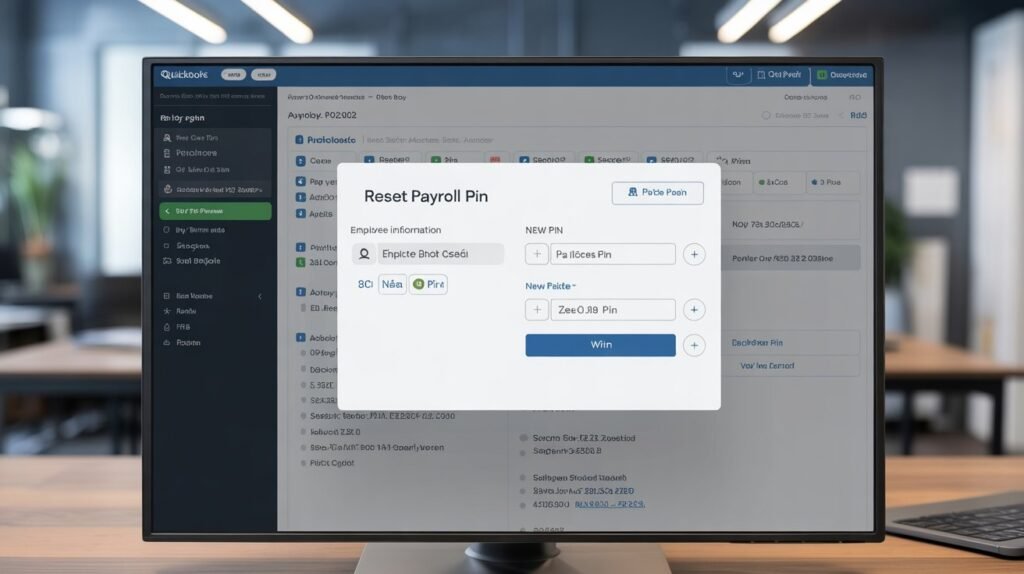
QuickBooks users can reset their Payroll PIN for Assisted Payroll Service by signing in as an admin, verifying their identity, and updating the PIN from payroll account settings. If self-reset fails, contacting QuickBooks Payroll Support with company verification details is required.
If you use QuickBooks Assisted Payroll, your Payroll PIN is a critical security element. It’s required to submit payroll, make changes, and verify sensitive payroll actions. If you’ve forgotten your PIN or need to reset it for security reasons, QuickBooks provides a safe and structured way to do so.
This guide explains when a PIN reset is needed, how to reset your QuickBooks Payroll PIN step by step, and what to do if you cannot reset it on your own.
Read: QuickBooks Online Backup
What Is a QuickBooks Payroll PIN?
The Payroll PIN is a 4-digit security code used by QuickBooks to confirm your identity when accessing or modifying payroll data, especially for Assisted Payroll Service. Unlike login passwords, the PIN is specifically tied to payroll authorization and compliance.
You may need to reset your PIN if:
- You forgot the existing Payroll PIN
- You entered the wrong PIN too many times
- There was a change in payroll administrator
- QuickBooks asked for a security update
- You suspect unauthorized access
Important Things to Know Before Resetting Your Payroll PIN
Before starting the reset process, make sure:
- You are logged in as the Primary Admin or Payroll Admin
- You have access to the registered email and phone number
- Your QuickBooks Desktop is updated to the latest version
- You are connected to a stable internet connection
Having these ready prevents verification delays.
How to Reset QuickBooks Payroll PIN (Assisted Payroll)
Step 1: Open QuickBooks Desktop
Launch QuickBooks Desktop and log in to your company file as an admin user.
Step 2: Go to Payroll Settings
- Click Employees from the top menu
- Select My Payroll Service
- Choose Account/Billing Information
You may be prompted to sign in with your Intuit account.
Step 3: Verify Your Identity
QuickBooks will ask you to verify your identity using:
- One-time verification code sent to your registered email or phone
- Security questions (if enabled)
Enter the code to proceed.
Step 4: Reset the Payroll PIN
Once verified:
- Select Change Payroll PIN
- Enter a new 4-digit PIN
- Confirm the PIN
- Save your changes
Choose a PIN that is easy to remember but difficult for others to guess.
Step 5: Test the New PIN
Run a test payroll action or access payroll settings to confirm the new PIN is working correctly.
What If You Can’t Reset the Payroll PIN Yourself?
If the automated reset does not work, you may be locked out for security reasons.
In this case:
- Contact QuickBooks Payroll Support
- Be ready with:
- Company name
- Employer Identification Number (EIN)
- Payroll service type (Assisted Payroll)
- Proof of identity
Support may reset the PIN after verifying ownership.
Common Reasons Payroll PIN Reset Fails
Some common causes include:
- Incorrect admin access
- Outdated QuickBooks Desktop version
- Mismatch in registered contact details
- Temporary Intuit server issues
- Multiple failed verification attempts
Updating QuickBooks and verifying your admin role often resolves these issues.
Best Practices to Keep Your Payroll PIN Secure
- Do not share your Payroll PIN with non-admin users
- Update your PIN periodically
- Keep contact details updated in your Intuit account
- Store the PIN securely using a password manager
- Log out after payroll changes
These steps help prevent payroll disruptions and unauthorized access.
Conclusion
Resetting your QuickBooks Payroll PIN for Assisted Payroll Service is a straightforward process when you have the correct admin access and verification details. Whether you reset it through your payroll account or with QuickBooks support, keeping your PIN secure ensures smooth payroll operations and protects sensitive employee data.
If the reset fails or you encounter repeated errors, it’s best to contact QuickBooks Payroll Support to avoid delays in payroll submission.